
Home Assistant for beginners usually starts the same way: frustration. Maybe Google Home dropped a device for no reason. Maybe Alexa started asking for a subscription to use a feature that was free last year. Maybe a smart home brand you trusted announced it was shutting down its cloud servers, turning thousands of dollars of hardware into expensive paperweights overnight.
If any of that sounds familiar, you’re exactly who Home Assistant was built for.
Home Assistant is a free, open-source smart home platform that runs entirely on hardware you own, in your own home. It doesn’t send your data to Amazon, Google, or anyone else. It doesn’t charge a subscription. It doesn’t disappear if a company decides to shut down a server somewhere. And in 2026, it has genuinely become easy enough for a complete beginner to set up in about an hour.
This guide walks you through exactly that — no programming knowledge required, no Linux experience assumed.
What Is Home Assistant, Actually?
Home Assistant is software that acts as the central brain of your smart home. Instead of controlling your lights through one app, your thermostat through another, and your cameras through a third — each one phoning home to a different company’s servers — Home Assistant brings everything into a single, unified system that you control directly, running on a small computer in your house.
First released in 2013, it has grown into the largest open-source smart home project in the world, with hundreds of thousands of active installations and thousands of supported integrations covering virtually every smart home brand on the market.
The defining difference from Google Home, Amazon Alexa, or Samsung SmartThings is where the intelligence lives. Those platforms process your commands and automations on company servers — which means your data leaves your house, your automations stop working if your internet goes down, and the company can change, restrict, or shut down features at any time. Home Assistant processes everything locally. Your data never leaves your network. Your automations work even if your internet is out. And nobody can take a feature away from you, because there’s no company controlling the software you’re running.
Why People Actually Switch to Home Assistant
It’s worth being honest about the real motivations, because they shape what you should expect:
Reliability. Local devices in Home Assistant typically respond in under a second, while cloud-based systems can take several seconds or longer. For something like a motion-activated light, that difference is immediately noticeable — and frankly, occasionally embarrassing when you’re standing in a dark room waiting for a cloud server somewhere to respond.
Longevity. Several smart home manufacturers have shut down cloud services or started charging subscriptions for features that were previously free. When a device depends entirely on a manufacturer’s cloud server, that manufacturer controls whether your device keeps working — permanently. Home Assistant breaks that dependency.
Privacy. Your home’s activity patterns — when you’re there, what you do, who visits — are genuinely sensitive information. Home Assistant doesn’t transmit any of it to a third party by default.
Unified control. If you’ve accumulated devices from five different brands over the years (which most smart home owners eventually do), Home Assistant is the one platform that brings them all into a single dashboard and lets them work together, regardless of which app each one originally shipped with.
No subscription, ever. The core software is free and always will be. (An optional cloud service called Nabu Casa exists for remote access convenience, but it’s entirely optional and the platform works completely without it.)
What You Need Before You Start
Home Assistant needs one piece of dedicated hardware to run on. Don’t run it on your main computer or as an afterthought on your router — a small, dedicated device is the right approach and keeps things reliable.
Option 1 — Home Assistant Green ($99) — Recommended for beginners
This is the official plug-and-play hardware made by Nabu Casa, the company behind Home Assistant. It ships with the software pre-installed, runs on a quad-core ARM processor with 4GB of RAM, and is genuinely ready to use within minutes of plugging it in. If you want the absolute simplest path with zero technical setup of the underlying hardware, this is it.
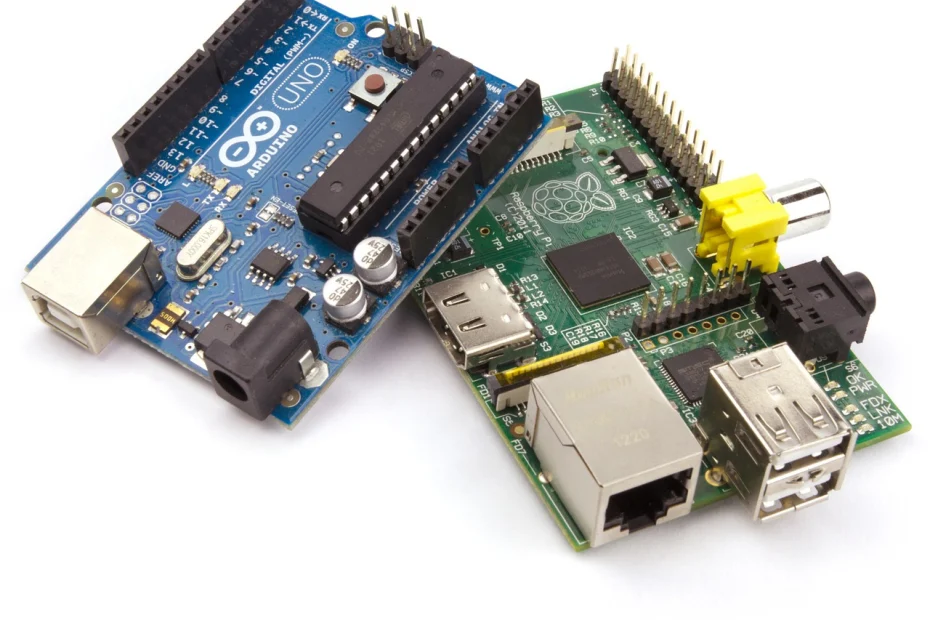
Option 2 — Raspberry Pi 5 (~$80 for the board + accessories)
The classic choice for anyone who wants a bit more flexibility and doesn’t mind a slightly more hands-on installation process. You’ll need a Raspberry Pi 5, a good quality microSD card or SSD, a case, and a power supply — typically totalling $100–$130 depending on what you already have lying around.
Option 3 — An old mini PC, NUC, or repurposed laptop
Home Assistant runs happily on almost any spare computer — an old Intel NUC, a retired office mini PC, even a laptop with a cracked screen that still boots. If you have hardware sitting in a drawer, this is the cheapest option of all.
For connecting devices beyond Wi-Fi:
Wi-Fi devices connect through your existing router with no extra hardware needed. But Zigbee, Z-Wave, and Thread devices — the protocols used by the majority of dedicated smart home sensors, bulbs, and switches — need a compatible radio adapter. A simple USB Zigbee dongle (around $25) covers the vast majority of beginner needs and is worth ordering alongside your hardware so you’re not waiting later.
Step-by-Step: Your First Hour with Home Assistant
Step 1: Install Home Assistant OS
If you chose Home Assistant Green, this step is already done — skip to Step 2.
If you’re using a Raspberry Pi or mini PC, download the Home Assistant OS image from the official Home Assistant website and flash it onto your microSD card or SSD using the free Raspberry Pi Imager tool. Select “Home Assistant” from the operating system list, choose your device, and let it write the image — this takes about 10 minutes.
Step 2: First Boot
Connect your device to your router via an Ethernet cable (more reliable than Wi-Fi for your central hub), plug in the power, and wait. The first boot takes several minutes as the system completes its initial setup — be patient, this is normal.
Step 3: Access the Onboarding Wizard
From any computer on your home network, open a web browser and go to homeassistant.local:8123. You’ll be greeted by a setup wizard that walks you through creating your administrator account, setting your location (used for sunset/sunrise automations and weather), and configuring basic preferences.
Step 4: Let Device Discovery Do the Work
Home Assistant automatically scans your network for compatible devices the moment it starts up. Smart plugs, bulbs, and other Wi-Fi devices already on your network will often appear automatically, ready to be added with a single click. This is genuinely one of the most pleasant surprises for first-time users — much of the “setup” is actually just confirming devices that have already been found.
Step 5: Add Your Zigbee/Z-Wave Radio (If You Have One)
If you bought a USB Zigbee or Z-Wave dongle, plug it into your hub device — ideally on a short USB extension cable rather than directly into the case, which reduces interference. Home Assistant will detect it and prompt you to set up the Zigbee Home Automation (ZHA) integration, which is built directly into the platform and handles the vast majority of Zigbee devices without any additional software.
Step 6: Build Your First Dashboard
Home Assistant automatically generates a basic dashboard showing all your discovered devices, but it’s worth spending ten minutes customising it — grouping devices by room, removing entities you don’t need to see, and arranging things the way that makes sense for how you actually use your home.
Step 7: Create Your First Automation
This is where Home Assistant starts to feel genuinely magical. Go to Settings → Automations → Create Automation, and build something simple:
“Turn on the hallway light when motion is detected after sunset”
- Trigger: Motion sensor detects movement
- Condition: Time is after sunset
- Action: Turn on hallway light
“Notify me if the garage door is left open”
- Trigger: Garage door sensor reports “open”
- Condition: Time is after 10pm
- Action: Send a notification to your phone
Most beginners start with one or two automations like these, see how satisfying it is when they actually work, and gradually build out a more comprehensive set of routines over the following weeks.
Home Assistant vs Google Home, Alexa, and SmartThings
| Home Assistant | Google Home / Alexa | Samsung SmartThings | |
|---|---|---|---|
| Cost | Free forever | Free (hardware cost only) | Free (hardware cost only) |
| Where data is processed | Locally, in your home | Cloud servers | Cloud (mostly) |
| Works without internet | Yes | No | Limited |
| Response speed | Under 1 second | 3–6 seconds typically | Varies |
| Device compatibility | Broadest — 1,000+ integrations | Good, growing with Matter | Good |
| Setup difficulty | Moderate | Very easy | Easy |
| Risk of features disappearing | None — you control the software | Possible — company decision | Possible — company decision |
| Customisation depth | Extremely deep | Limited | Moderate |
The honest trade-off: Home Assistant asks for more upfront effort in exchange for far more control, privacy, and long-term reliability. Google Home and Alexa ask for almost no effort in exchange for convenience — at the cost of dependency on a company’s continued goodwill.
Many experienced smart home users actually run both — Home Assistant as the central brain, with Google Home or Alexa connected as a voice interface layer on top. You don’t have to choose entirely one way or the other.
What to Automate First
Once you’re comfortable with the basics, here are the automations beginners consistently find most valuable:
Lighting automations — motion-activated lights in hallways and bathrooms, lights that turn off automatically when everyone leaves, gradual sunrise-simulation wake-up lighting.
Security notifications — alerts when doors or windows are left open, notifications when motion is detected while you’re away, automatic recording triggers for cameras.
Energy savings — thermostat schedules that adjust based on whether anyone’s home, smart plugs that cut power to devices during specific hours, alerts for unusual energy consumption.
Presence-based routines — your “arrive home” routine (lights on, temperature adjusted, music starts) and your “leaving” routine (everything secured and powered down) triggered automatically by your phone’s location.
Daily routines — a “good morning” automation that gradually brightens lights and reads out the weather, a “good night” automation that locks doors, turns off lights, and arms security.
Backing Up Your Setup
Once you’ve invested time building automations, protecting that work matters. Home Assistant officially recommends a straightforward backup approach: keep your live system plus two backups, store them across at least two different types of storage (for example, a local drive and a cloud service), and keep at least one copy somewhere outside your home — Google Drive, OneDrive, or a NAS device at another location.
Home Assistant OS includes built-in backup tools accessible from Settings → System → Backups. Set up an automated weekly backup early on — it takes a few minutes to configure and means a hardware failure or accidental misconfiguration never costs you your carefully built automations.
Common Beginner Mistakes to Avoid
Buying too many devices before setting up your radio hardware. Decide on your Zigbee/Z-Wave approach before accumulating dozens of devices — mixing compatibility standards unnecessarily complicates the process.
Running Home Assistant on your main PC or router. It’s tempting to skip buying dedicated hardware, but a shared or underpowered device leads to instability and is genuinely not worth the headache it saves upfront.
Trying to automate everything immediately. Start with two or three automations that solve a real, specific annoyance in your daily routine. Expand gradually as you get comfortable with how the system thinks.
Skipping backups. It’s easy to defer this until “later.” Set it up in your first week, while you still remember how good your dashboard looked before something went wrong.
Ignoring the community. The Home Assistant community forum has hundreds of thousands of members, and nearly every beginner question has already been asked and answered in detail. Search before asking — but don’t hesitate to ask if you’re stuck.
Final Thoughts on Home Assistant for Beginners
Home Assistant for beginners sounds intimidating from the outside — Zigbee, automations, YAML configuration files, integrations. In practice, the modern setup experience has been refined to the point where a complete beginner can have a working system with real automations in their first afternoon.
The reward is a smart home that you genuinely control — one that doesn’t depend on a company’s quarterly earnings call, doesn’t send your daily routine to an advertising server, and doesn’t stop working the moment your internet connection drops. For anyone who’s grown frustrated with the limitations of mainstream smart home platforms, it’s the most meaningful upgrade available.
Start with the Home Assistant Green if you want the simplest path, or a Raspberry Pi 5 if you enjoy a bit of hands-on setup. Either way, your first automation working correctly for the first time is genuinely one of the most satisfying moments in home tech.
Best Operating Systems for Raspberry Pi in 2026

Maynard Desktop Environment for Raspberry Pi
Updated: May 2026 | Covers Raspberry Pi 5, 4, 3B+, Zero 2 W, and older models The Raspberry Pi remains one of the most versatile pieces of hardware you can buy for under $100. But choosing the right operating system makes the difference between a smooth, powerful project and hours of frustration. The wrong OS… Read More »
- Home Assistant for Beginners: Your First Step Away from Big Tech’s Smart Home
 Home Assistant for beginners usually starts the same way: frustration. Maybe Google Home dropped a device for no reason. Maybe Alexa started asking for a subscription to use a feature that was free last year. Maybe a smart home brand you trusted announced it was shutting down its cloud servers, turning thousands of dollars of…
 - What Data Do Smart Home Devices Collect? (And What Happens to It)What data do smart home devices collect? The honest answer is: far more than most people realise, far more than is necessary for the devices to do their jobs, and in many cases, far more than the average person would be comfortable with if they read the privacy policy in full. 82% of smart home…
- Digital Twins Explained: The Technology That Creates a Living Copy of EverythingDigital twins explained in one sentence: a digital twin is a living, continuously updated virtual replica of a real physical object, system, or process — connected to its real-world counterpart through sensors and data, updating in real time as the physical version changes. That definition is accurate, but it doesn’t quite capture why this technology…
- IoT Sensors Explained: What They Are, How They Work, and Where They’re Already in Your HomeIoT sensors explained simply: every smart device you own — your thermostat, your fitness tracker, your doorbell camera, your robot vacuum — relies on at least one sensor to do its job. Sensors are the reason smart devices are smart. Without them, a connected device is just a device. Yet most explanations of IoT sensors…
- Matter 1.4 vs Zigbee vs Z-Wave: Best Smart Home Protocol for US Homes in 2026By KontraNet IoT Hub | Last Updated: June 3, 2026 | Reading time: 11 min Quick Pick for US Homeowners in 2026 Use this table if you just need the answer fast: Your Situation Best Protocol in 2026 Why It Wins for US Homes Apple + Google + Alexa household Matter 1.4 over Thread All 3 ecosystems control the…




Best AI Writing Tools for Bloggers in 2026 (Free & Paid)