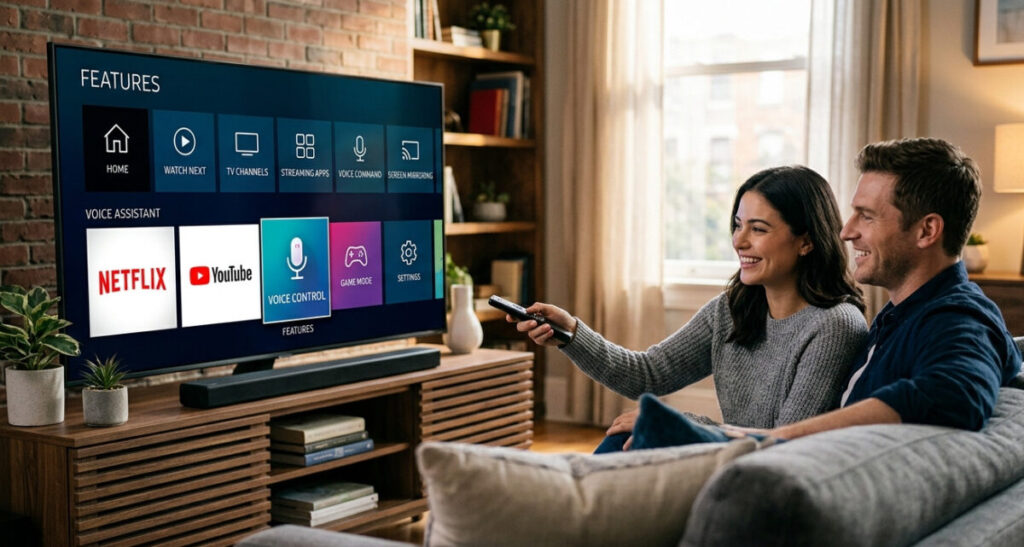

Most people buy a smart TV, plug it in, download Netflix, and never touch another setting again. And honestly? That’s completely understandable. Smart TVs have gotten so capable that the sheer number of features buried in their menus can feel overwhelming.
But here’s the thing — you’ve already paid for all of it. The features are sitting there, switched off or undiscovered, on the TV you already own. Some of them are genuinely useful. Some will change how you use your living room entirely.
This guide covers the smart TV features most people never find — no new hardware required, no technical knowledge needed. Just your remote and a few minutes.
1. Screen Mirroring and Casting — Ditch the Small Screen
Almost every smart TV sold in the last five years supports some form of wireless screen sharing, yet most owners have never tried it. This single feature turns your TV into an extension of your phone, tablet, or laptop — instantly.
What it does: Lets you wirelessly display whatever is on your phone or computer on your TV screen in real time. Photos, YouTube videos, websites, presentations, video calls — anything.
How to use it depending on your TV:
- Samsung (SmartThings / Smart View): Open the SmartThings app on your phone or use the built-in “Smart View” button in the notification shade on Android. On iPhone, use AirPlay — Samsung TVs from 2019 onwards support it natively.
- LG (Screen Share / AirPlay): LG’s webOS supports both Miracast (for Android) and AirPlay 2 (for iPhone and Mac). Go to Home → Screen Share to start.
- Google TV / Android TV (Chromecast built-in): If your TV runs Google TV or Android TV, Chromecast is already built in. Tap the cast icon in any compatible app on your phone — YouTube, Spotify, Chrome — and it streams directly to the TV.
- Roku TVs: Go to Settings → System → Screen Mirroring and enable it. Android phones can mirror directly; iPhone users need AirPlay-compatible Roku models.
- Apple TV: AirPlay works seamlessly across all Apple TV devices and any AirPlay 2-compatible smart TV.
Practical uses people actually love:
- Show vacation photos to the whole family without passing a phone around
- Run a video call on the big screen during family gatherings
- Browse property listings or travel sites on a 65-inch display
- Present a slideshow or document from your laptop without cables
2. Built-In Web Browser — Your TV Is Also a Computer
Many smart TVs — particularly those running Samsung Tizen, LG webOS, and Google TV — include a fully functional web browser that most owners never open.
It’s not your primary browsing device, but for quick lookups, recipe checking while cooking (if your TV is in the kitchen), or pulling up a streaming service the TV doesn’t have a dedicated app for, it’s genuinely useful.
Where to find it:
- Samsung: Search “Internet” in the app store or look in your app grid — Samsung’s browser is called “Internet”
- LG: Go to Home → find the web browser in the launcher bar — LG’s is simply called “Web Browser”
- Google TV: Search for a browser in the Play Store — “Puffin TV Browser” and “TV Bro” are popular options since Chrome isn’t available on TV directly
Pro tip: Pair a Bluetooth keyboard with your TV (more on that below) and suddenly the browser becomes far more usable. Some people use this to run YouTube from the browser when they want features the YouTube app doesn’t offer, or to access streaming services not available as TV apps in their region.
3. Bluetooth Keyboard and Mouse — Transform How You Type
Hunting for letters one-by-one with a TV remote is one of the most universally frustrating experiences in modern technology. Most people don’t realise their smart TV already supports Bluetooth — meaning you can pair a wireless keyboard and get actual typing speeds on your TV.
How to pair: Go to Settings → Remotes & Accessories (Samsung) or Settings → Bluetooth (LG/Google TV) → Add Device. Put your Bluetooth keyboard into pairing mode and it connects just like a phone or laptop.
A compact Bluetooth keyboard like the Logitech K380 (~$40) or a keyboard/trackpad combo makes navigating smart TV menus, searching for content, and using the browser dramatically faster and less infuriating. If you use your TV for anything beyond basic streaming — gaming, browsing, productivity apps — this is a worthwhile five-dollar investment.
4. Smart Home Control — Your TV as a Control Hub
This is one of the most underused features on modern smart TVs, and it’s particularly relevant if you already have smart home devices.
Samsung TVs with SmartThings integration can control compatible smart lights, plugs, thermostats, cameras, and door locks directly from the TV screen — no phone needed. Pull up the SmartThings panel from the TV’s home screen and you can see every device in your home, check who’s at the door via a connected camera, adjust the thermostat, or turn off the lights before bed.
LG TVs with ThinQ integration offer similar functionality for LG smart appliances and compatible third-party devices.
Google TV (including Sony Bravia TVs and TCL Google TV models) integrates with Google Home — meaning you can control any Google Home-compatible device with voice commands or through the TV’s home panel.
How to set it up:
- Make sure your TV and smart home devices are on the same Wi-Fi network
- Open the SmartThings, ThinQ, or Google Home section in your TV’s settings
- Sign in with the same account you use on your phone
- Your devices will appear automatically
This is genuinely useful for a TV in the living room — the biggest screen in the house becoming the control panel for the whole home is exactly what smart home tech should feel like.
5. Ambient Mode and Art Display — When the TV Is “Off”
Most TVs are black rectangles of nothing when you’re not watching. Several manufacturers now offer ambient display modes that turn that off-state into something useful or attractive — and most people never switch them on.
Samsung Ambient Mode: Available on most Samsung TVs from 2019 onwards. When the TV is on standby, it can display artwork, personal photos, useful information (weather, time, calendar), or even a pattern that matches your wall to make the TV nearly invisible. Access it by pressing the Ambient button on your Samsung remote or through the SmartThings app.
LG Screensaver / Gallery Mode: LG’s webOS offers similar functionality — curated artwork and photo displays when idle.
Google TV screensavers: Google TV can display a rotating gallery of artwork, Google Photos from your account, or curated photography when idle. Go to Settings → Device Preferences → Screen Saver to configure it.
Samsung The Frame: If you own a Frame TV specifically, the Art Store gives you access to thousands of licensed artworks that display in museum-quality style when you’re not watching — making the TV genuinely look like a framed painting on the wall.
6. Voice Control — Way More Powerful Than You Think
Every major smart TV platform now has voice control built in, but most people either never use it or only use it for the most basic commands. The capabilities go much further than asking it to play Netflix.
What you can actually do with smart TV voice control:
- “Find action movies from the 90s” — searches across multiple streaming services simultaneously
- “What was that actor in?” — brings up filmography while you’re watching
- “Turn down the volume to 15” — hands-free volume control
- “Set a reminder for the game on Sunday” — calendar integration
- “Turn off the lights” — controls smart home devices (on Google TV / Samsung with SmartThings)
- “What’s the weather tomorrow?” — general assistant queries
- “Jump back 30 seconds” — playback control without touching the remote
How to activate:
- Samsung: Press and hold the microphone button on the remote, or say “Hi Bixby”
- LG: Press the microphone button and speak, or say “Hey LG” on newer models
- Google TV: Press the microphone button or say “Hey Google”
- Roku: Press the microphone on the remote or use the Roku app on your phone
- Fire TV: Say “Alexa” — Amazon’s ecosystem integration is the most powerful for smart home control
7. Multi-View / Picture-in-Picture — Watch Two Things at Once
Samsung TVs support a Multi-View feature that lets you display two sources simultaneously — split screen. You can watch the game on one half while keeping an eye on a security camera feed, or follow a recipe video while browsing on the other side.
LG also supports Picture-in-Picture (PiP) on select models, and some Google TV devices offer split-screen modes depending on the model.
This is particularly useful for sports fans who want to follow two games at once, or for anyone running a smart home security camera who wants to keep a live feed visible while watching TV.
How to access on Samsung: Press the Home button → Multi View tile → select your two sources. You can adjust the split ratio and swap audio between sources.
8. Gaming Mode — Reduce Input Lag Even on Older TVs
If you use your smart TV for gaming — even casually — enabling Game Mode is one of the most impactful settings changes you can make. By default, smart TVs apply heavy image processing that looks great for movies but adds input lag that makes games feel sluggish and unresponsive.
Game Mode bypasses most of that processing, dramatically reducing input lag (often from 80-100ms down to 10-20ms) at the cost of some picture quality settings that don’t matter for gaming anyway.
How to enable it:
- Samsung: Settings → General → External Device Manager → Game Mode Settings → Game Mode On
- LG: Settings → All Settings → Picture → Additional Settings → Game Optimizer
- Google TV / Sony: Settings → Display & Sound → Picture Mode → select “Game”
- Most other brands: Settings → Picture → Mode → Game
Many newer TVs also support Auto Game Mode (ALLM) — they automatically switch to Game Mode when they detect a games console is active. Check if your TV supports this and enable it for seamless switching.
9. Private Listening — Sound Through Your Phone, Not the Speakers
This is one of the most underrated smart TV features for households where one person is a night owl or wants to watch without disturbing others.
Several smart TV platforms allow you to route audio to your smartphone through the TV’s companion app — you plug headphones into your phone and hear the TV’s audio with zero delay, while the TV speakers stay silent.
How to use it:
- Roku: Open the Roku app on your phone → tap the headphone icon → plug in headphones
- Samsung: Open the SmartThings app while the TV is on → audio can route to connected Bluetooth headphones paired through the app
- LG ThinQ app: Offers similar audio routing on compatible models
This also works with Bluetooth headphones paired directly to the TV itself on most modern smart TVs — go to Settings → Sound → Sound Output → select your Bluetooth device.
Quick Reference: Features to Enable Right Now
| Feature | Works On | Time to Set Up |
|---|---|---|
| Screen mirroring / casting | All major platforms | 2 minutes |
| Bluetooth keyboard | All major platforms | 3 minutes |
| Smart home control | Samsung, LG, Google TV | 5 minutes |
| Ambient / Art Mode | Samsung, LG, Google TV | 1 minute |
| Voice control (full features) | All major platforms | Already on |
| Game Mode | All major platforms | 1 minute |
| Private listening | Roku, Samsung, LG | 2 minutes |
| Multi-View | Samsung (select models) | 1 minute |
Final Thoughts
Your smart TV is almost certainly more capable than you’re giving it credit for. Most of these features are already there, already paid for, and take just a few minutes to enable. Smart home integration alone can transform how your living room fits into your broader connected home — especially if you already have devices like smart lights, a thermostat, or security cameras.
Start with the one that sounds most useful to you. Screen mirroring tends to be the crowd favourite for families. Game Mode is an instant win for anyone with a console. And if you have Samsung or LG devices throughout your home, the smart home control panel on your TV might become your new favourite way to manage everything.
The features were always there. Now you know where to look.
Related reading: Voice Assistant vs Smart Home Hub: Which Do You Need? | How to Secure Smart Home Devices | Best Smart Home Gadgets Under $50
Published on KontraNet IoT Hub — Your beginner-friendly guide to smart living and connected tech.
- AI Home Companion Robots Are Here: What CES 2026 Revealed About Your Future Living Room
 AI home companion robots stopped being a sci-fi punchline this year. At CES 2026 in Las Vegas, LG showed off a robot with two arms and five-fingered hands folding laundry on stage. Samsung unveiled a full ecosystem of appliances it’s now calling “home companions” instead of appliances. And a startup founded by the co-creator of…
 - On-Device AI in Smart Homes: Why 2026 Is the Year of Local Intelligenceon-device AI – Smart homes are changing fast, and one of the biggest shifts in 2026 is happening inside the devices themselves. Instead of sending every command and camera clip to the cloud, more smart home products are now processing data locally for faster response, better privacy, and more reliable automation. For homeowners, this is…
- Home Assistant for Beginners: Your First Step Away from Big Tech’s Smart HomeHome Assistant for beginners usually starts the same way: frustration. Maybe Google Home dropped a device for no reason. Maybe Alexa started asking for a subscription to use a feature that was free last year. Maybe a smart home brand you trusted announced it was shutting down its cloud servers, turning thousands of dollars of…
- What Data Do Smart Home Devices Collect? (And What Happens to It)What data do smart home devices collect? The honest answer is: far more than most people realise, far more than is necessary for the devices to do their jobs, and in many cases, far more than the average person would be comfortable with if they read the privacy policy in full. 82% of smart home…
- Digital Twins Explained: The Technology That Creates a Living Copy of EverythingDigital twins explained in one sentence: a digital twin is a living, continuously updated virtual replica of a real physical object, system, or process — connected to its real-world counterpart through sensors and data, updating in real time as the physical version changes. That definition is accurate, but it doesn’t quite capture why this technology…





Best Linux Distros for Privacy and Security in 2026